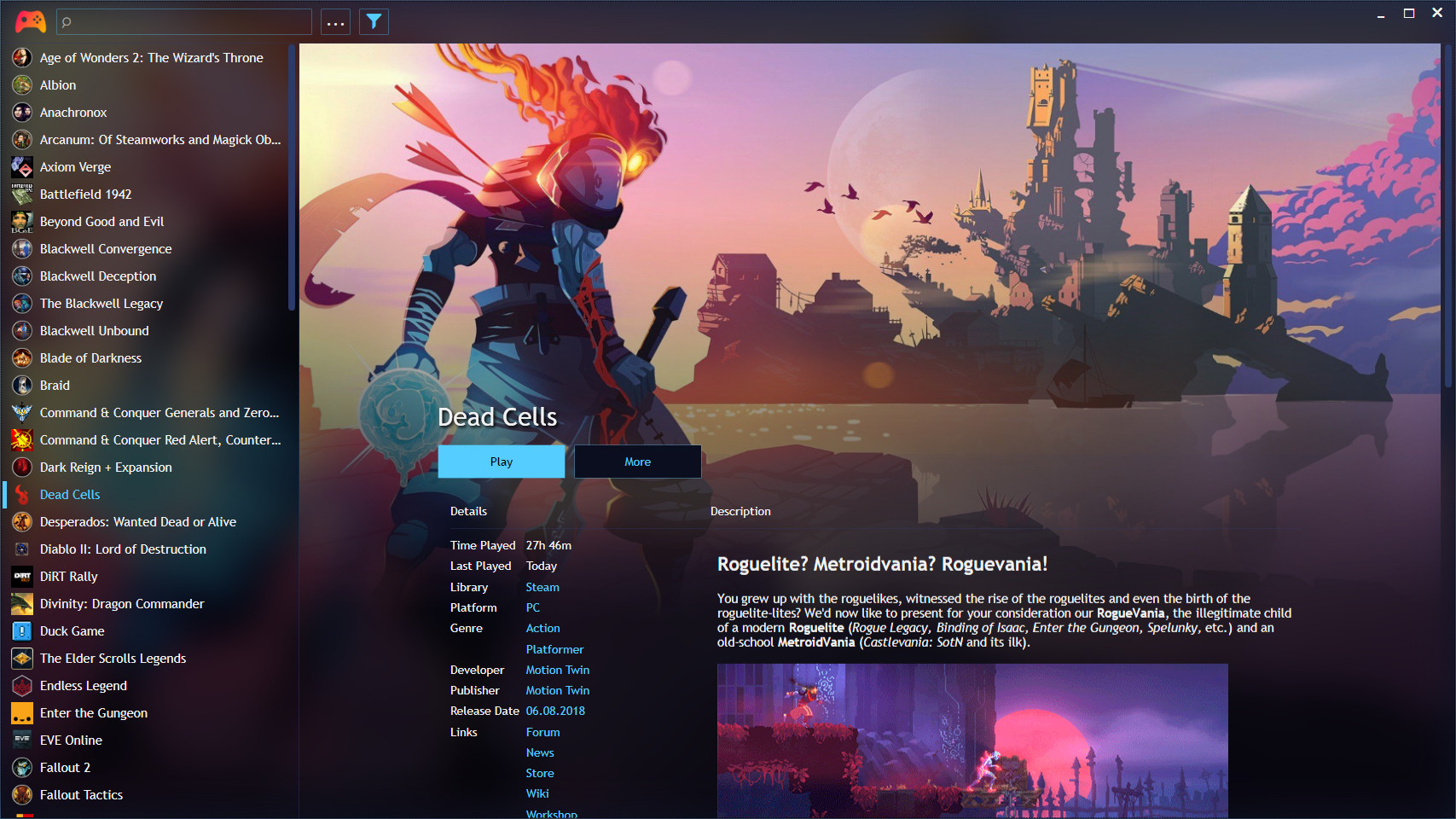
Playnite is natively a Windows application built on the .NET Framework, meaning there is no official native Linux client yet. However, you can easily download, install, and run Playnite on Linux by using Lutris, which automates the setup of a Wine prefix equipped with the necessary Windows dependencies.
Step 1: Install Lutris
If you don't have Lutris installed on your Linux distribution yet, install it via your package manager or Flatpak (recommended for most distros):
Bash
flatpak install flathub net.lutris.Lutris
Step 2: Install Playnite via Lutris
-
Open Lutris.
-
Search for Playnite in the Lutris platform database, or go directly to the Playnite page on the Lutris website and click Install.
-
The Lutris script will automatically create a dedicated Wine prefix, install .NET Framework 4.8, install
corefonts, and download the official Playnite installer. -
Follow the on-screen prompts in the installer wizard. (Tip: Uncheck "Launch Playnite" at the very end of the installer script if the process hangs, then launch it manually through Lutris).
Step 3: Crucial Post-Install Configuration (Fixing UI Glitches)
Because Playnite runs through Wine, graphical rendering issues are common on first boot. Address this immediately:
-
Launch Playnite from Lutris.
-
Go to Main Menu > Settings > Advanced.
-
Check the box to Disable Hardware Acceleration (or Hardware UI Acceleration). This stops the UI from freezing, flickering, or rendering black screens.
Step 4: Configure Libraries and Storefronts
Once Playnite is running stably:
-
Go to Main Menu > Add-ons > Extension settings > Libraries.
-
Enable and authenticate the storefronts you want to track (Steam, Epic Games Store, GOG, etc.).
-
Note on Linux: While Playnite can track your Windows-based accounts and metadata, launching games that rely heavily on Windows binaries will require configuring Lutris, Proton, or Heroic Game Launcher paths inside Playnite's custom action settings.
Step 5: Setting Up Fullscreen Mode (Optional)
If you are using Playnite as a couch-gaming interface (similar to Steam Big Picture Mode):
-
Inside Playnite, switch to Fullscreen Mode (
F11or via the main menu). -
You can configure Playnite to launch directly into Fullscreen Mode by targeting the
Playnite.FullscreenApp.exeexecutable inside your Wine prefix path.
0 commenti:
Post a Comment