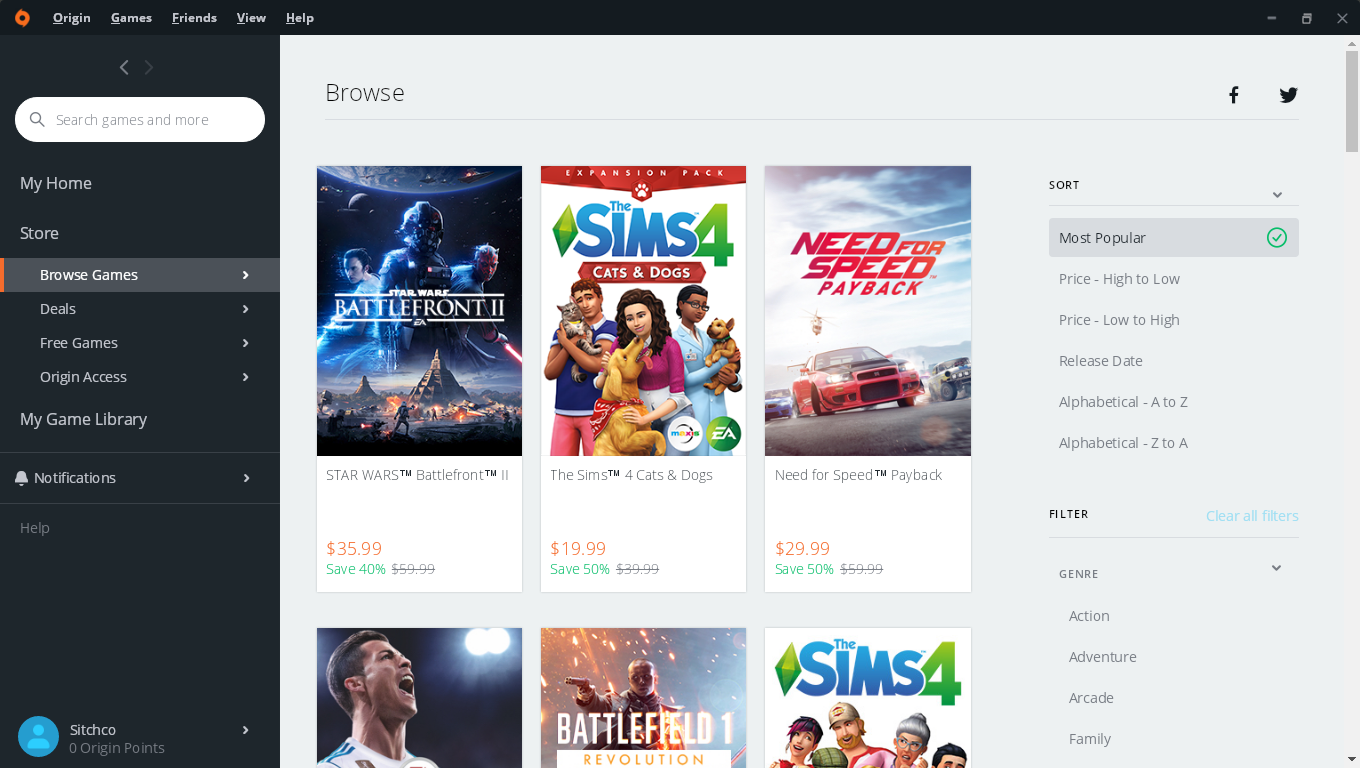
Electronic Arts officially retired Origin and replaced it with the EA App (EA Desktop). You can no longer log into or download the legacy Origin client, as all EA accounts, purchases, and game libraries were migrated to the EA App.
However, you can easily install, configure, and run the EA App on Linux using open-source game managers like Lutris, Heroic Games Launcher, or Bottles.
Method 1: Installing via Lutris (Recommended)
Lutris provides a pre-configured installation script that sets up the proper Wine prefix and dependencies automatically.
1.Install Lutris:Universal installation via Flatpak.
If Lutris is not already installed on your system, install it via Flatpak or your distribution's package manager:
Bash
flatpak install flathub net.lutris.Lutris
2.Add the EA App:Search and run the installer script.
-
Open Lutris.
-
Under Sources on the left sidebar, hover over EA App and click the user icon, or click the + (Add) icon at the top left and search for
EA App. -
Click Install and follow the prompts to let Lutris download and configure the container environment.
3.Configure Wine Settings:Select a compatibility runner.
-
Once installation completes, right-click the EA App entry in Lutris and select Configure.
-
Go to Runner Options.
-
Under Wine Version, ensure a modern runner such as Wine-GE or GE-Proton is selected for optimal compatibility.
4.Launch and Play:Sign in and install games.
-
Click Play on the EA App in Lutris.
-
Sign in with your EA account credentials.
-
Download your desired games through the EA App interface.
-
Once downloaded, you can launch games directly from inside the EA App or add their shortcuts to Lutris.
Method 2: Sideloading via Heroic Games Launcher
If you prefer Heroic Games Launcher, you can sideload the standalone Windows installer into a custom Wine prefix:
-
Download the Installer: Download the official
EAappInstaller.exefrom EA's website. -
Add to Heroic: In Heroic, click Add Game, type "EA App", select a GE-Proton Wine version, and click Select Executable to choose
EAappInstaller.exe. -
Run Setup: Launch it to run the installer, then close it once the setup completes.
-
Set Main Executable: In Heroic game settings, change the executable path to point to
EADesktop.exeinside the newly created Wine prefix (.../drive_c/Program Files/Electronic Arts/EA Desktop/EA Desktop/EADesktop.exe).
Method 3: Playing EA Games via Steam
If you own EA games directly on Steam (e.g., Apex Legends, Battlefield, Mass Effect):
-
You do not need to install the full standalone EA App manually.
-
Launching the game through Steam automatically installs a lightweight EA background service ("thin client") into the game's Proton prefix and manages login prompts seamlessly.
Troubleshooting & Important Notes
-
Repairing After Updates: The EA App occasionally breaks after internal app updates. If it fails to open, run
EAappInstaller.exeagain inside the existing Wine prefix and choose the Repair option. -
Anti-Cheat Limitations: Most single-player and legacy multiplayer titles run well under Linux. However, newer titles that rely on EA's proprietary kernel-level anti-cheat (such as Battlefield 2042 or EA Sports FC) will not run under Wine/Proton.
For a step-by-step walkthrough on configuring the EA launcher using Heroic, check out this How to Setup EA App on Heroic Game Launcher video guide. This video provides a clear visual guide on assigning Wine prefixes and configuring executable paths for EA titles on Linux.
0 commenti:
Post a Comment