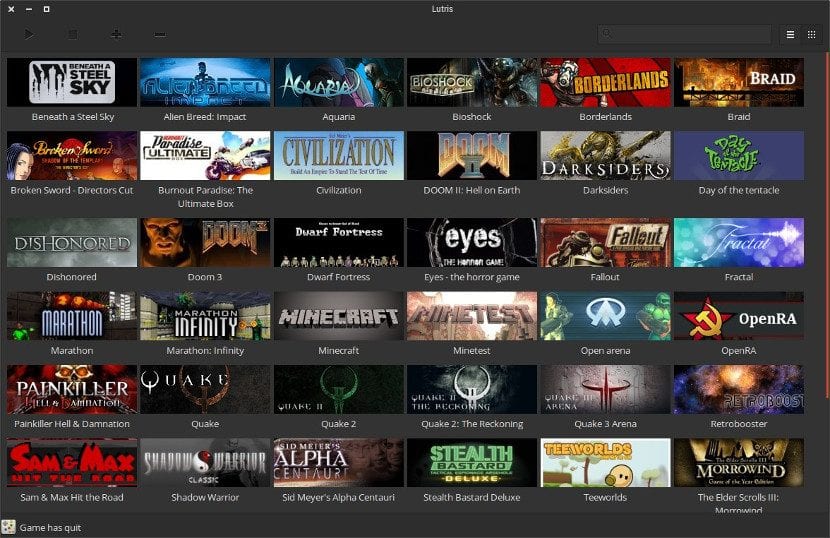
Lutris is a game manager/launcher for Linux that brings together Windows games through Wine, native Linux games, emulators, and stores such as Steam, GOG, Epic, Battle.net, EA App, and Ubisoft Connect. It automates much of the setup through community-maintained installers. GGitHub+1
Below is a practical guide that works for most modern Linux distributions.
1. What you need first
For Windows games, the important pieces are:
- Lutris — manages your games and runners.
- Wine — compatibility layer for Windows games.
- Vulkan drivers — strongly recommended for modern Windows games.
- 32-bit graphics libraries/drivers — important for many older Windows games.
- DXVK/VKD3D — translates DirectX to Vulkan; Lutris can manage these for you.
- Game files — from your legitimately purchased games/stores.
Lutris itself provides game-specific runners, so you generally don't need to manually download every Wine/DXVK component. Lutris nevertheless recommends having Wine and the appropriate graphics drivers installed on the system. LLutris
2. Install Lutris
The recommended installation method depends on your distribution. Lutris maintains current distribution-specific instructions on its official download page. LLutris
Ubuntu / Linux Mint / elementary OS
Lutris provides a .deb package through its GitHub releases.
Download the latest .deb from:
Lutris official downloads
Then install it, for example:
cd ~/Downloads
sudo apt install ./lutris*.deb
Using apt install ./file.deb is preferable to manually unpacking the package because it also handles dependencies.
Fedora
sudo dnf install lutris
This is the official repository method. LLutris
Arch Linux / Manjaro / EndeavourOS
sudo pacman -S lutris
Lutris is available from Arch's Extra repository. LLutris
openSUSE
sudo zypper in lutris
Flatpak
If your distribution doesn't have a suitable native package, Flatpak is a convenient alternative:
flatpak install flathub --user -y net.lutris.Lutris
Run it with:
flatpak run net.lutris.Lutris
Lutris officially provides its Flatpak through Flathub. LLutris
One important difference: Lutris notes that if you use its Flatpak, you don't need to install Wine separately in the same way as with a native Lutris installation. LLutris
3. Install your graphics drivers
This is one of the most important steps.
NVIDIA
Use your distribution's recommended proprietary NVIDIA driver rather than downloading a random .run installer from NVIDIA.
For example, on Ubuntu:
ubuntu-drivers devices
Then:
sudo ubuntu-drivers install
Reboot:
sudo reboot
Check that the driver works:
nvidia-smi
AMD
Modern AMD GPUs generally use the kernel's amdgpu driver plus Mesa/Vulkan.
On Ubuntu-based distributions, make sure the Vulkan packages are installed. Exact package names depend on the Ubuntu release.
You can test Vulkan with:
vulkaninfo
If vulkaninfo isn't installed, install the appropriate Vulkan-tools package for your distribution.
Intel
Modern Intel GPUs similarly use the kernel/Mesa stack.
Again, test with:
vulkaninfo
Lutris specifically recommends having 32-bit OpenGL and Vulkan drivers installed as well, because games may require them even on a 64-bit Linux installation. GGitHub
4. Start Lutris
Launch it from your desktop's application menu, or:
lutris
You should see the main Lutris window.
You can also run:
lutris -d
This is useful because it displays diagnostic information in the terminal if something goes wrong.
5. Configure Lutris
Open:
Lutris → Preferences
The exact appearance varies somewhat between versions.
Runners
A runner is the software Lutris uses to run a particular type of game.
Examples include:
- Wine — Windows games
- Linux — native Linux games
- DOSBox — DOS games
- ScummVM — classic adventure games
- RetroArch/emulators — various console platforms
Lutris provides many runners and manages them through its interface. LLutris
For Windows games, start with Wine.
You can install/manage Wine versions from Lutris rather than manually downloading random Wine builds.
6. Set up Wine
For a Windows game, Lutris normally creates a separate Wine prefix.
Think of a Wine prefix as a self-contained Windows environment:
Game A
 └── Wine prefix
      ├── drive_c
      ├── Program Files
      ├── users
      └── Windows configuration
This is extremely useful because one game can have different Windows libraries/settings from another.
Don't normally put every game into one giant Wine prefix.
Let Lutris create separate prefixes for your games unless you have a specific reason to share one.
7. Install your first Windows game
This is where Lutris becomes particularly useful.
Go to the Lutris website:
Lutris game library
Search for your game.
You'll often find an installer specifically designed for that game.
For example, the Lutris website can provide installers that automatically perform steps such as:
- Create the Wine prefix.
- Download/install the game's launcher.
- Install required components.
- Configure Wine.
- Configure DXVK.
- Create the Lutris game entry.
Lutris installers are declarative scripts that describe the files, Wine configuration, and installation steps required for a game. GGitHub
8. Installing a game from the Lutris website
Suppose you want to install a game called Example Game.
On its Lutris page, select the appropriate installer.
You may see choices such as:
Wine
Steam
GOG
Epic Games
Battle.net
Windows installer
Choose the version corresponding to how you own the game.
Lutris will open and ask you to select installation locations/files when necessary.
Important
If an installer asks you for:
setup.exe
you should provide the installer you legitimately obtained from the game's store/distribution source.
Lutris doesn't magically provide copyrighted game files.
9. Where should games be installed?
A good arrangement is something like:
~/Games/
with:
~/Games/Game1/
~/Games/Game2/
~/Games/Game3/
For example:
/home/yourname/Games/
I generally recommend not putting your Wine games inside:
~/.wine
when you're using Lutris.
Let Lutris manage the prefixes.
A typical Lutris installation might end up conceptually like:
~/Games/MyGame/
    drive_c/
    ...
The exact directory structure depends on the installer and your Lutris configuration.
10. Configure an installed game
Once a game is installed, right-click it in Lutris and select:
Configure
You'll typically find sections for:
Game options
Here you can configure things such as:
- executable
- working directory
- command-line arguments
- Wine prefix
- environment variables
Runner options
For Wine games you'll find settings related to:
- Wine version
- DXVK
- VKD3D
- Esync
- Fsync
- Windows version
- DLL overrides
- virtual desktop
System options
You can configure:
- environment variables
- GPU selection
- audio
- display behavior
- Gamescope
- performance options
Don't change everything at once.
A good rule is:
If a game works, leave its configuration alone.
11. DXVK
For most modern DirectX 9/10/11 Windows games, DXVK is one of the most important components.
It translates:
DirectX 9/10/11
       ↓
     DXVK
       ↓
    Vulkan
       ↓
    GPU driver
This can provide excellent performance compared with older WineD3D paths.
Lutris can manage DXVK versions for you.
For a modern game, you will generally want DXVK enabled rather than trying to configure it manually.
12. VKD3D-Proton
For DirectX 12 games, you'll commonly encounter VKD3D-Proton rather than DXVK.
Conceptually:
DirectX 12
    ↓
VKD3D-Proton
    ↓
 Vulkan
    ↓
 GPU
Again, Lutris can manage the appropriate runner components.
Don't install DLLs from random websites just because a game says something like:
d3d12.dll missing
That's often a sign that the Wine/DXVK/VKD3D configuration needs attention.
13. Connecting Steam, GOG, Epic, etc.
Lutris can integrate with several game services, including:
- Steam
- GOG
- Epic Games Store
- Battle.net
- EA App
- Ubisoft Connect
- Humble
Lutris describes these as sources. You can enable/login to them through the Sources section or Preferences depending on your version. LLutris
For example, you can connect a supported store and have your library appear inside Lutris rather than manually creating every game entry.
14. Steam games
You don't necessarily need Lutris for Steam games.
If a game is available on Steam and works with Steam Play/Proton, Steam itself is often the simplest solution.
Use Lutris when you specifically want things such as:
- a non-Steam Windows game
- multiple Wine versions
- Battle.net/Epic/EA/Ubisoft integration
- old Windows games
- emulators
- games installed outside Steam
- more direct control over Wine prefixes
Lutris and Steam can happily coexist.
15. Launching a game
Once installation is complete:
- Open Lutris.
- Select the game.
- Click Play.
If it works, congratulations—you've got a Linux gaming setup.
If it doesn't, don't immediately start changing 20 settings.
First launch it from the terminal:
lutris -d
Then launch the game.
Look at the error output.
16. Useful troubleshooting procedure
When a Windows game doesn't work, work through these in order.
A. Check Vulkan
vulkaninfo
If Vulkan doesn't work, fix the graphics driver first.
B. Check your GPU
NVIDIA:
nvidia-smi
AMD:
lspci | grep -Ei 'vga|3d|display'
Intel:
lspci | grep -Ei 'vga|3d|display'
C. Try another Wine version
In:
Game → Configure → Runner options
try another Lutris/Wine build.
Don't assume the newest version is automatically best for every game.
D. Check DXVK/VKD3D
For a DX9/10/11 game, check DXVK.
For a DX12 game, check VKD3D-Proton.
E. Check the game's Lutris page
This is often the fastest solution.
The game's Lutris page may contain notes from people who have tested the installer on particular Linux distributions and configurations.
F. Run Lutris in debug mode
lutris -d
This provides considerably more information than simply clicking the desktop icon.
17. Useful system dependencies
Lutris' own documentation lists several utilities that can be useful for installing/running games, including:
p7zip
curl
cabextract
unzip
fuser/psmisc
xrandr or equivalent Wayland support
soundfonts
32-bit OpenGL/Vulkan drivers
The exact package names vary by distribution. GGitHub
For example, on Debian/Ubuntu-derived systems:
sudo apt install psmisc cabextract unzip p7zip curl
You don't necessarily need every package manually if your Lutris distribution package already pulled in the relevant dependencies.
18. Environment variables
Sometimes a game needs a particular environment variable.
In:
Configure → System options → Environment variables
you can add variables such as:
Variable: DXVK_HUD
Value: fps
Then the game can display an FPS overlay.
For example:
DXVK_HUD=fps
is useful for testing whether DXVK is actually being used.
Remove debugging variables afterward if you don't need them.
19. Gamescope
If your system supports it, Lutris can also be used with Gamescope.
Gamescope is useful for things such as:
- resolution scaling
- frame limiting
- fullscreen behavior
- Steam Deck-style gaming environments
- controlling presentation of games
But don't add Gamescope just because it's available.
Get the game working normally first, then introduce Gamescope if you have a reason to use it.
20. Backing up Lutris
Your Lutris configuration is primarily stored under:
~/.local/share/lutris
and Lutris also has configuration under your normal user configuration/cache directories. GGitHub
Your actual games/prefixes are separate, depending on where you installed them.
So for a backup, think of it as:
Lutris configuration
        +
Wine prefixes
        +
Game files
Backing up only Lutris' configuration does not necessarily back up your installed games.
21. Don't manually modify Lutris configuration unless necessary
Lutris' documentation explicitly recommends managing configuration through the client rather than manually editing its configuration files. GGitHub
So instead of editing:
~/.local/share/lutris/...
use:
Right-click game → Configure
whenever possible.
22. A good first-time setup
If I were setting up a fresh Linux gaming installation, I'd do this:
1. Update Linux
       ↓
2. Install correct GPU driver
       ↓
3. Install Vulkan + 32-bit graphics support
       ↓
4. Install Lutris
       ↓
5. Start Lutris
       ↓
6. Install/manage Wine runner
       ↓
7. Connect Steam/GOG/Epic/etc. if needed
       ↓
8. Install one game
       ↓
9. Test it
       ↓
10. Configure only if necessary
The most important thing is not to over-configure Lutris. Its installer scripts are designed to do much of the work for you. LLutris+1
Recommended starting point
If you're new to Lutris, I'd use the native package supplied for your distribution rather than the source code. Lutris itself recommends package/repository installation and specifically warns against using setup.py install; source installation is mainly useful for development/testing. LLutris+1
If you tell me your Linux distribution (e.g. Ubuntu 24.04, Linux Mint 22, Fedora 42, Arch, etc.) and GPU (NVIDIA/AMD/Intel + model), I can give you the exact commands to install Lutris, Wine, Vulkan and the 32-bit dependencies for your system.
0 commenti:
Post a Comment